Pan Kotecki, store admin app
How can the whole shop be run from a phone, from payment to parcel, without sitting down at a computer?
A store management app for running an online shop from a phone, from orders and shipping to the product range, installed from the browser without the app stores.
- Client
- Pan Kotecki
- Services
- Mobile apps, Business systems
- Sector
- E-commerce
as of September 2026
The situation before
The Pan Kotecki shop belongs to the agency's co-owners. The brief called for an admin app for running the entire shop from a phone, from word of a confirmed payment to a courier label.
Prices, photos, bundles, promotions and store settings were to be changed in the panel, without involving us. The panel had to work on an iPhone without an App Store release, so it became a web app installed from the browser.
Questions the project had to answer
- How can a parcel be sent without retyping the buyer's address onto a label?
- How can fixes reach the app without waiting for an app store review?
Scope of work
- Store admin app installed on the phone home screen
- Alerts on every paid order
- Order handling and status tracking
- InPost labels, including multi-parcel orders
- Products with photographs, categories and discount codes
- Customer review visibility
- Monthly sales summary
- Store settings and a pre-opening mode
Connected services
- InPost
- Supabase
How we did it
Installed on the home screen
The panel is a browser app that installs onto the phone's home screen, bypassing the app stores. Once installed it has its own name and icon and opens full screen, with no browser bar. On an iPhone it shows how to add it to the home screen, since notifications work only then.
A new version loads by itself the next time the panel opens, with no store review to wait for and no updates to keep track of. The phone connects to the shop once, on first launch. Disconnecting the phone under the More tab also switches its notifications off.
The bottom bar leads to the home screen, orders, products and the dashboard, and the bell at the top opens notifications. Reviews, categories, promotions, customers and settings sit under the More tab.
Alerts and a sales summary
A confirmed payment sets off an alert with the order number and amount on every phone with notifications switched on, even when the panel is closed. Tapping it opens the order list, and a payment for a cancelled order arrives as a separate warning to check by hand.
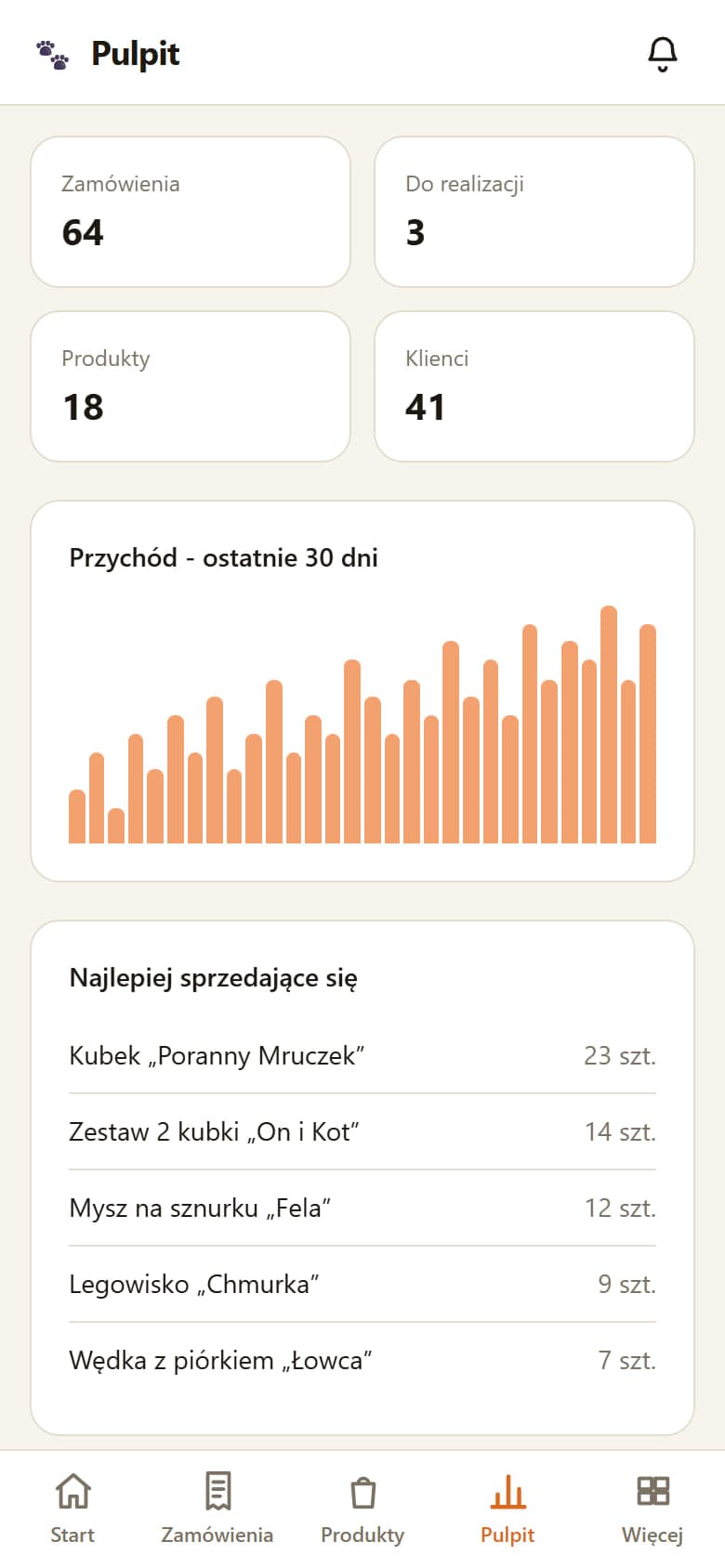
The home screen shows what the shop has earned this month on paid orders and the percentage change on the previous month. Below come orders, items sold, new customers, the average order, the best day, the month's top seller and charts for six months and day by day. The dashboard gathers revenue, the number of orders, products and customers, a chart of the last thirty days, recent orders and the best-selling products.
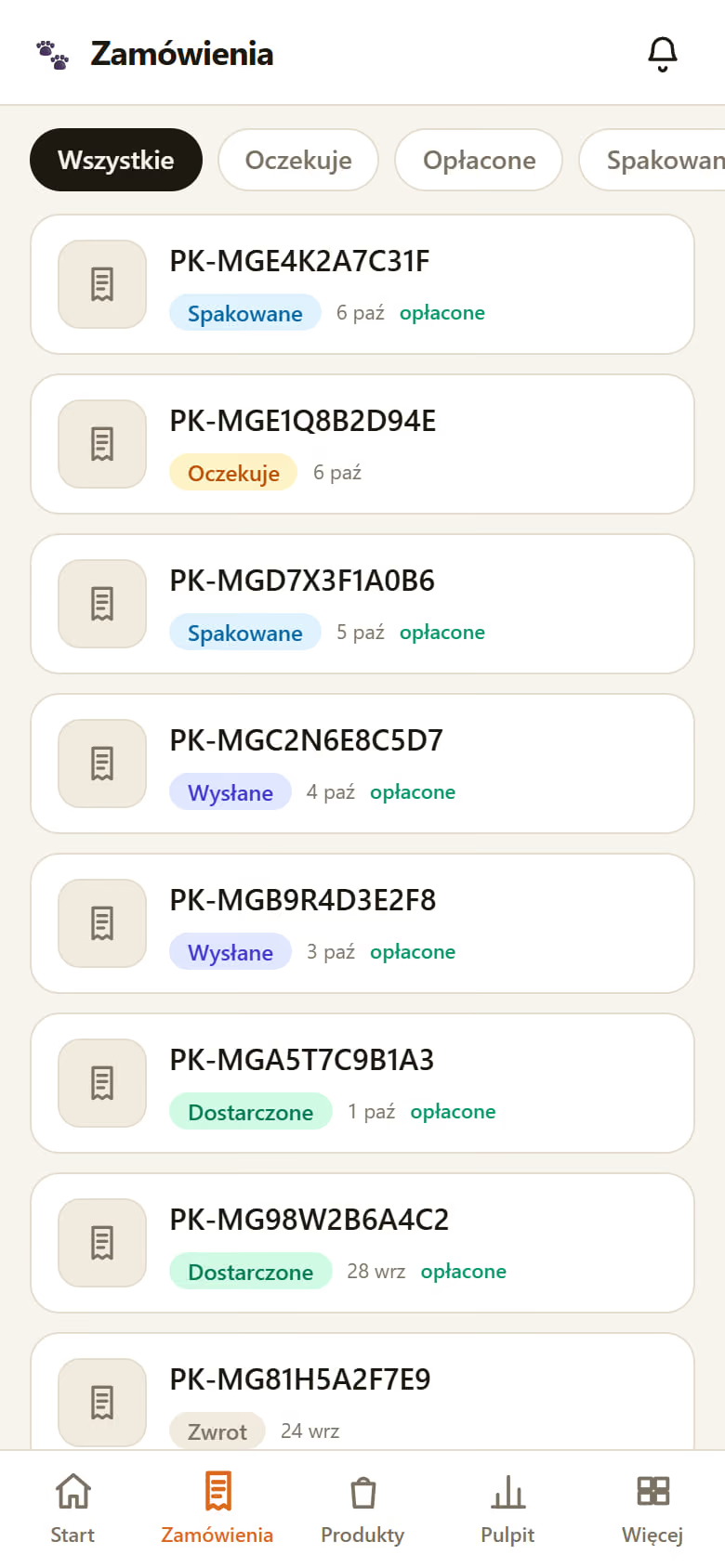
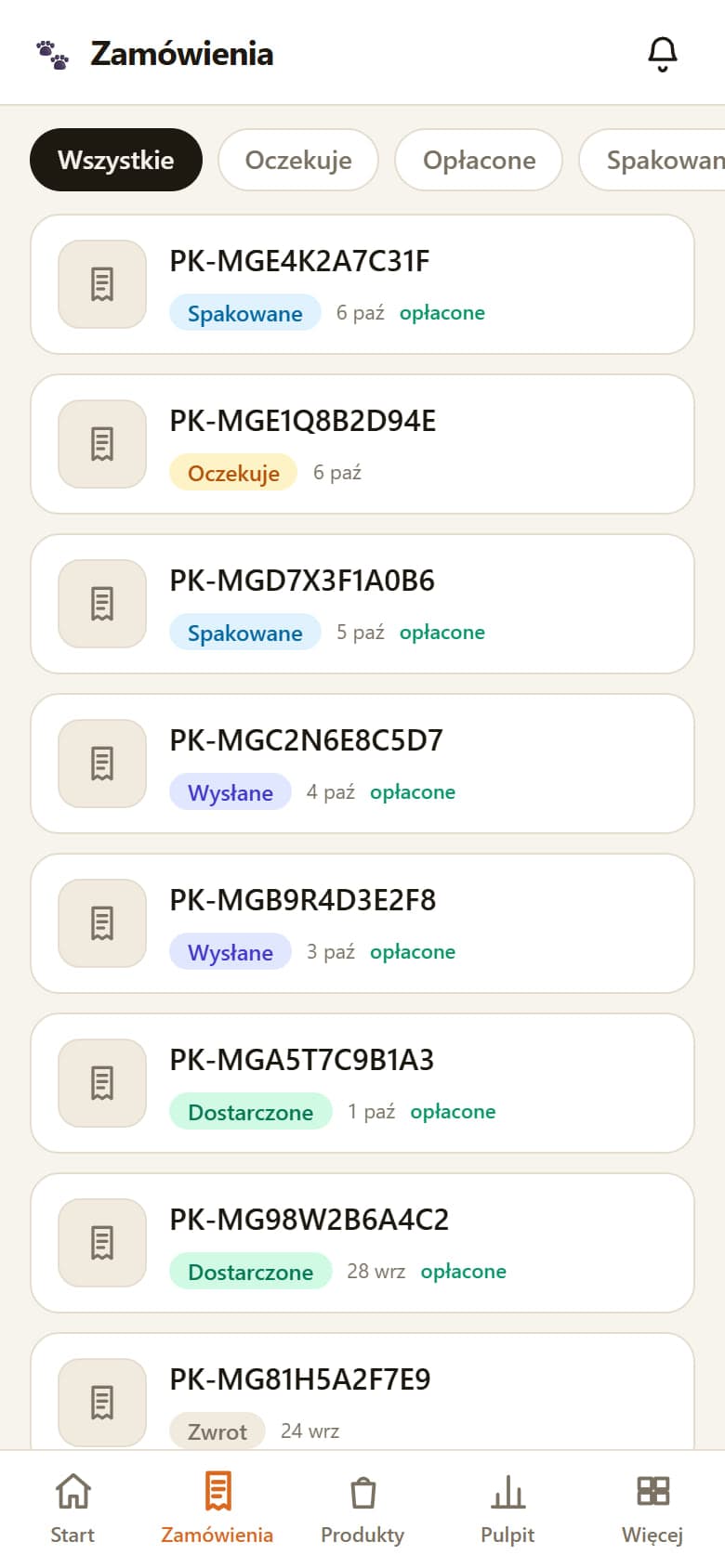
The order list filters by seven statuses, from pending to returned. An order's details show the products with the chosen bundle patterns, the discount code, delivery and contact. The owner can change the status, mark a payment by hand, correct the recipient's phone or locker code and add a note.
Despatch and store settings
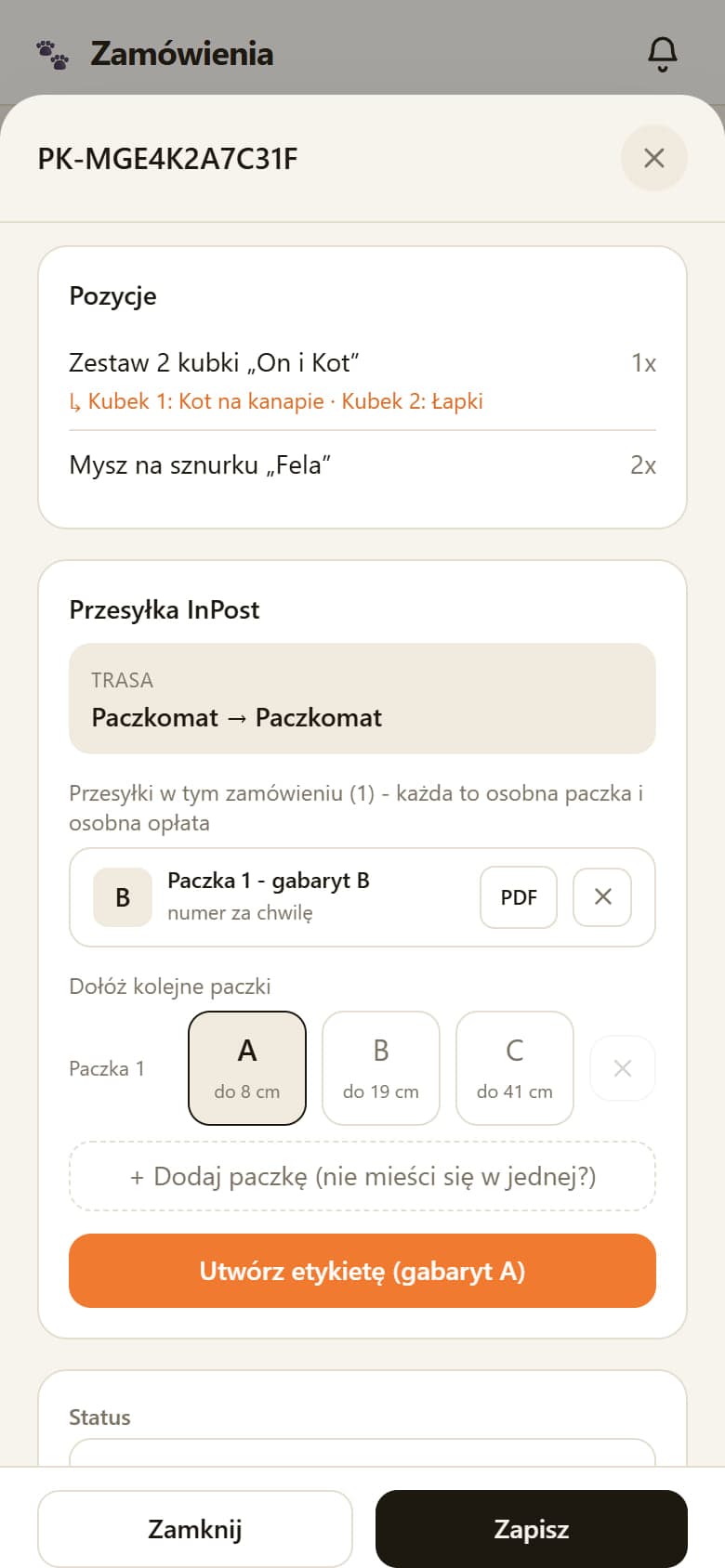
The owner picks the parcel size and downloads an InPost label as a PDF, while the buyer's address or locker carries over from the order untouched. One order can have several parcels, each with its own size and label, and the tracking number and packed status are saved automatically. For a courier, the owner chooses between dropping the parcel at a locker and having it collected. Before several parcels are created, the panel points out that each one is a separate shipment.
Error messages from the carrier's system appear in Polish with advice on what to do, and a double tap does not create two shipments. A buyer with a shop account sees the status and tracking number. Once an order is marked as delivered, every buyer gets an email asking for a review.
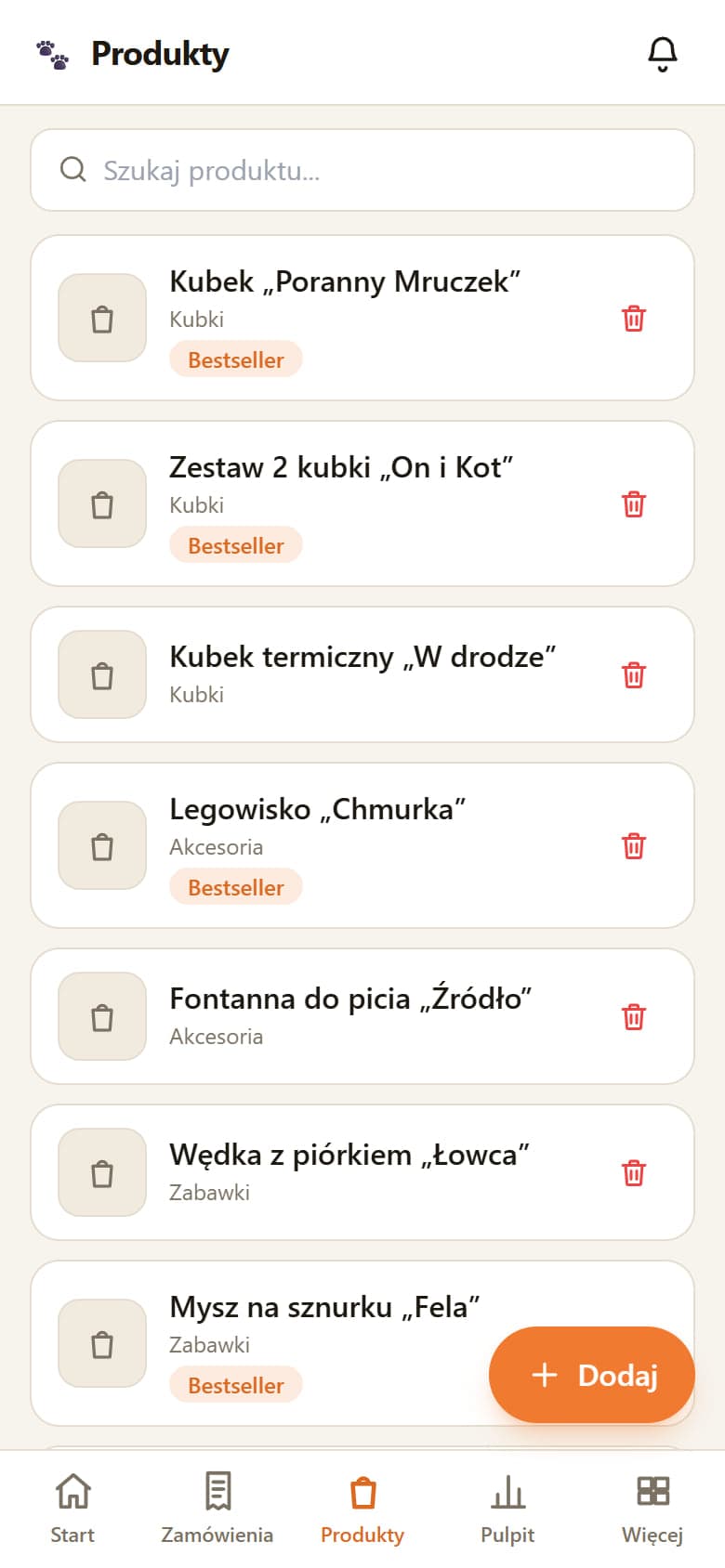
Products are added and edited on the phone, with the price, sale price, category, description, stock level and visibility switches. Photos go up straight from the phone, several at once, and the server rotates, resizes and saves them in a light format. The product card also sets up a bundle for shoppers to complete. Categories have a name, an order and a short line shown in the shop above the products.
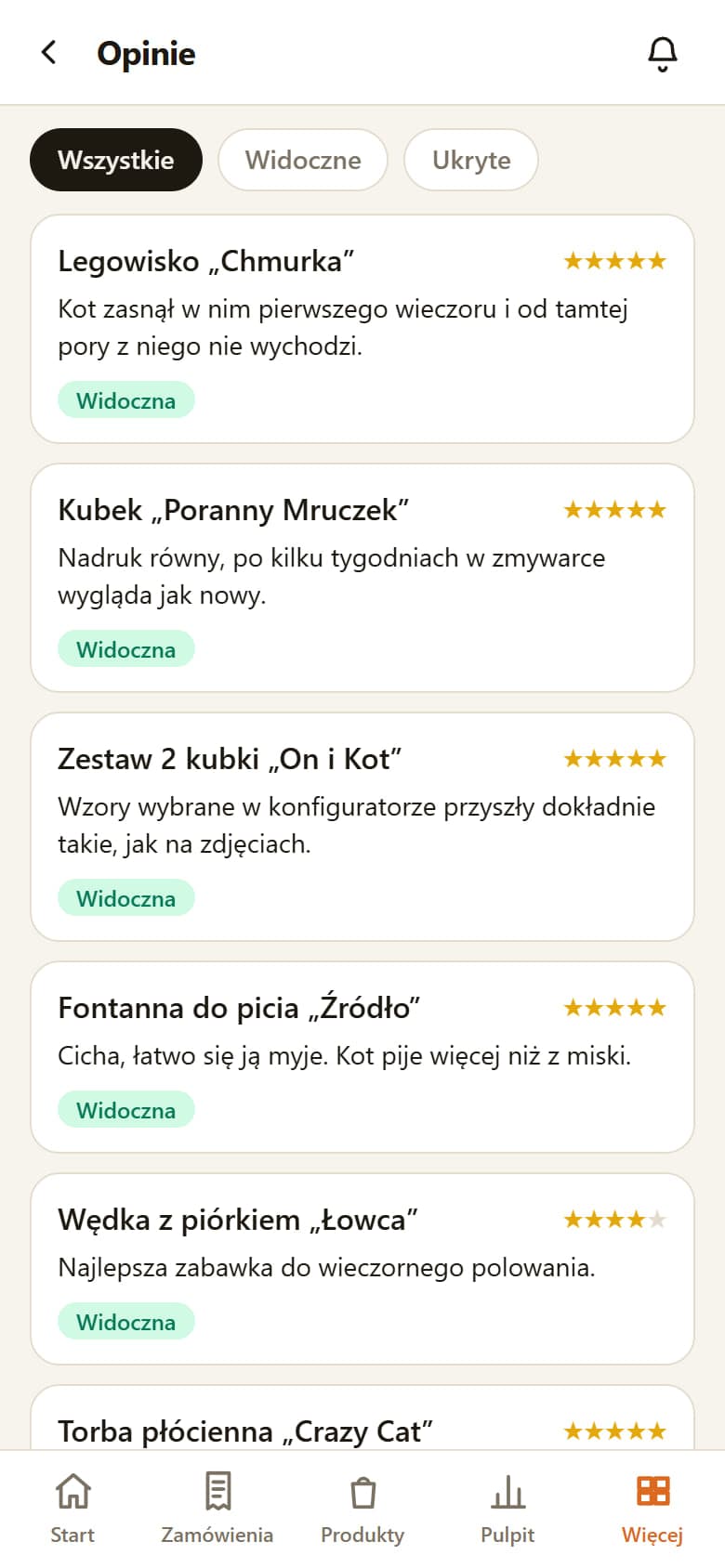
Discount codes take a percentage or fixed discount, a minimum order, a usage limit and a counter of uses. Reviews can be filtered, hidden and deleted, and only buyers with a link from a paid order can post them. The customers tab shows each buyer's order history, and a customer account can be deleted on request.
In the settings a single switch closes the shop in a coming-soon mode with an opening date, next to the free delivery threshold. The panel is a React app on Vercel servers that uses the shop's order server and Supabase database.
Selected screens
Planning a similar project? We give the exact price and timeline after a short conversation.
Ask for a quoteNext project
AMICO, workshop website
A stone-by-use section suggests materials for a kitchen, bathroom or terrace, and an AI assistant answers questions outside opening hours too.